

Nearly 90% of digital photography errors come from wrong color temperatures. A quick white balance fix can save these moments and bring back natural beauty. By understanding how light affects your camera, you can turn any dull photo into a vibrant one.
These small adjustments make sure your highlights look natural, not orange or blue. I aim to teach you how to get neutral tones every time you take a photo. My goal is to help you capture the true essence of a scene without color casts ruining it.
Learning these simple tricks will make your photos stand out with professional clarity. I believe every creator should see their vision come to life with perfect color. Let’s explore how to improve your gallery and take your skills to the next level.
Key Takeaways
- Identify how different light sources change your image hues.
- Understand why neutral tones are essential for professional results.
- Discover how to remove unwanted orange or blue color casts.
- Improve your editing speed with simple color adjustment tools.
- Ensure skin tones look healthy and realistic in every shot.
- Master the settings needed for any lighting environment.
Understanding White Balance Basics
White balance is key in photography. It changes how colors look in your photos. Knowing it well helps make your photos look natural and good.
What is White Balance?
White balance adjusts the color of an image to match the lighting. This makes sure white things look white, not colored.
Light sources have different colors, measured in Kelvin (K). Daylight is about 5600K, while indoor lights are 3200K. Changing your camera’s white balance or editing software helps fix these differences.
Why is White Balance Important?
Getting white balance right is important. Wrong white balance can make photos look unnatural and bad.
For example, indoor photos might look yellow without the right white balance. Outdoor photos under shade might look too blue. The right white balance makes colors look natural.
Common White Balance Issues
One big problem is mixed lighting. When you have different lights in one scene, it’s hard to get white balance right.
Another issue is changing light during sunrise or sunset. The color temperature changes fast, making it hard to adjust white balance.
| Lighting Condition | Color Temperature (K) | White Balance Setting |
|---|---|---|
| Daylight | 5600 | Daylight/Sunny |
| Tungsten Lighting | 3200 | Tungsten/Incandescent |
| Shade | 7000-8000 | Shade/Cloudy |
Knowing these basics helps you make better white balance choices. You can adjust it in-camera or later in editing.
Identifying Color Temperature
Photographers need to master color temperature to get natural and pleasing colors in their photos. Color temperature, measured in Kelvin, shows the color of light. It greatly affects the mood and look of a photo.
To adjust color temperature well, knowing the Kelvin scale is key. It ranges from warm, yellowish tones at low temperatures to cool, bluish tones at high temperatures.
Kelvin Scale Explained
The Kelvin scale measures light color temperature. It goes from about 1,000K to 10,000K. Here are some common light sources and their temperatures:
| Light Source | Color Temperature (K) |
|---|---|
| Candlelight | 1,700-2,000K |
| Incandescent Bulb | 2,800-3,000K |
| Sunlight at Sunrise/Sunset | 2,000-3,000K |
| Daylight | 5,500-6,500K |
| Shade | 7,000-8,000K |
How Temperature Affects Your Images
The color temperature of a scene changes your image’s color cast. Shooting indoors under incandescent light (warm) without adjusting white balance makes images yellowish. Shooting in shade (cool) without adjustments makes images bluish.
Knowing how to adjust camera settings or edit based on scene color temperature is key. Recognizing different light sources and their effects helps improve your photography.
Adjusting White Balance in Camera Settings
Adjusting white balance in your camera settings can make a big difference in your photos. It helps capture the mood and colors of a scene accurately. This is key to taking great photos.
Ansel Adams said, “You don’t take a photograph, you make it.” Mastering white balance is essential for making great photos. It lets you control the color temperature and avoid unwanted color casts.
Setting Custom White Balance
Setting a custom white balance lets you adjust your camera for specific lighting. This is great for mixed lighting or unusual light sources.
To set custom white balance, point your camera at a neutral-colored object like a gray card. Take a reading from it. This tells your camera what “white” looks like in the current light, adjusting the white balance.
Using Presets for Quick Fixes
Most cameras have white balance presets like daylight, tungsten, and fluorescent. These presets quickly adjust your camera’s white balance for common lighting.
Presets are handy for familiar environments. But, they might not always be perfect. Real-world lighting can be complex.
Evaluating Auto White Balance Performance
Auto white balance (AWB) lets your camera adjust white balance automatically. While it’s gotten better, it’s not always reliable.
It’s smart to test your camera’s AWB under different lights. This shows its strengths and weaknesses. It helps you know when to use AWB and when to choose a different setting.
“The right white balance can make all the difference between a good photo and a great one.” By controlling your camera’s white balance, you can improve your photos. You’ll capture images that truly reflect your vision.
Post-Processing Software for White Balance Fix
Using the right post-processing software can make fixing white balance easier. Today, photographers have many tools to adjust white balance in their photos.
These software tools help not just with white balance but also improve the image quality. Whether you’re a pro or just starting, learning these tools can boost your photography skills.
Popular Editing Software Choices
There are many editing software options for different needs and skill levels. Adobe Lightroom and Photoshop are top choices for their powerful editing features.
Skylum Luminar, Capture One, and ON1 Photo RAW are also great for adjusting white balance.
| Software | Key Features for White Balance | User Level |
|---|---|---|
| Adobe Lightroom | White balance presets, temperature, and tint adjustments | Beginner to Advanced |
| Adobe Photoshop | Advanced color grading, white balance adjustments through various tools | Advanced |
| Skylum Luminar | AI-powered adjustments, including white balance | Beginner to Advanced |
Using Adobe Lightroom for Adjustment
Adobe Lightroom is a great tool for photographers. It makes adjusting white balance easy. Start by using the White Balance Selector tool to pick a neutral area in your image.
Steps to adjust white balance in Lightroom:
- Open your image in the Develop module.
- Select the White Balance Selector tool.
- Click on a neutral area in your image.
- Adjust the Temperature and Tint sliders as needed.
Fixing White Balance in Photoshop
Photoshop has advanced tools for white balance adjustments. You can use the Camera Raw Filter for similar adjustments as Lightroom.
Steps to fix white balance in Photoshop:
- Open your image in Photoshop.
- Go to Filter > Camera Raw Filter.
- Adjust the White Balance settings as needed.
- Use the Temperature and Tint sliders for fine-tuning.
By mastering these tools and techniques, you can improve your images’ quality by achieving accurate white balance.
Manual White Balance Adjustments
Learning to adjust white balance manually can really improve your photos. It lets you make sure your pictures show the scene as it really is.
Manual adjustments are great when the lighting is tricky. Automatic white balance might not get it right in complex scenes. This is because of mixed lighting or colors that dominate the scene.
How to Use a Gray Card
A gray card is a key tool for getting white balance right. It acts as a neutral reference for your camera. Place it in the scene under the same light as your subject.
Take a photo of the gray card, making sure it’s in the frame. Then, in your editing software, use this photo to set the white balance. The software will adjust the colors based on the gray card’s neutral tone.
Adjusting White Balance in RAW Files
Adjusting white balance in RAW files gives you more power in post-processing. RAW files have more data than JPEGs, making adjustments easier.
To adjust white balance in a RAW file, open it in your favorite editing software. Look for the white balance tool, which might be a dropper or a temperature slider. You can then fine-tune the adjustments to get the look you want.
Key benefits of adjusting white balance in RAW files include:
- Greater flexibility and control over the final image
- Ability to make significant changes without degrading the image quality
- Non-destructive editing, allowing you to revert to the original file at any time
By getting good at manual white balance adjustments, you can make your photos look even better. You’ll ensure they’re always the right color and look great.
Using Filters to Control White Balance
Photographers often use filters to control white balance. Filters can improve image quality by adjusting color temperature and reducing casts. We’ll look at how different filters can help achieve the right white balance in your photos.
Benefits of UV and Polarizing Filters
UV filters protect the lens and reduce haze, making images clearer. Polarizing filters directly affect white balance. They cut down on reflections, enhance colors, and boost contrast. This helps in getting a more accurate white balance.
For example, a polarizing filter can lessen the blue cast in outdoor shots under a clear sky. This is great for landscape photographers who want true colors in their photos.
Color Correction Filters Explained
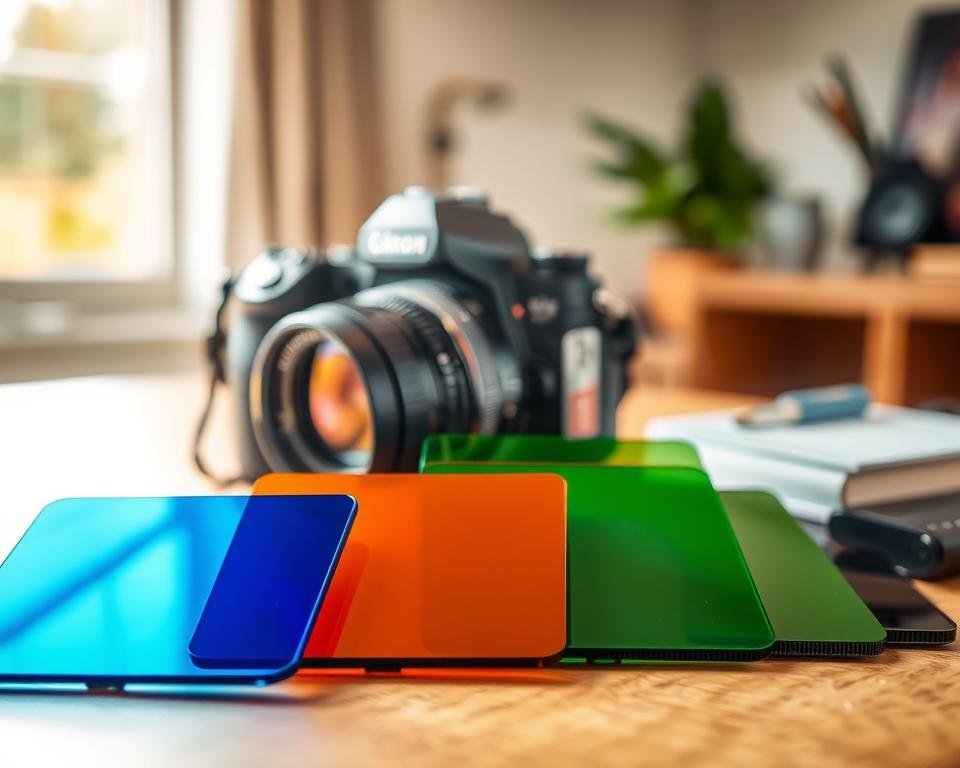
Color correction filters adjust the color temperature of your images. They come in various strengths and types. Warming filters add warmth, while cooling filters add coolness. These filters help fine-tune the white balance to match the scene’s lighting.
For instance, if you’re shooting indoors under tungsten lights, a cooling filter can neutralize the warm cast. This results in a more natural white balance. On a cold, cloudy day outdoors, a warming filter can add a pleasing warmth to your images.
Remember, color correction filters work best when shooting in RAW format. This allows for more flexibility in post-processing. For more on fixing color casts in ND filters, see this resource.
- Enhanced color accuracy
- Improved contrast and reduced glare
- Greater creative control over the color temperature
Using filters in your photography can lead to more consistent and pleasing results, even in tough lighting conditions.
Tips for Achieving Accurate White Balance
Perfect white balance starts with knowing your camera and the lighting. It makes your photos look real by keeping colors true.
Taking Test Shots
Test shots are a great way to get white balance right. Take a photo and check it on your camera’s screen. This lets you tweak your white balance settings for better results.
“Test shots help you adjust white balance,” says a famous photographer. “It’s a simple trick that improves your photos a lot.”
Understanding Lighting Conditions
Lighting affects your white balance settings. Daylight, fluorescent, and incandescent lights have different colors. Knowing this helps set the right white balance.
Tools like gray cards or color checkers are also helpful. They help your camera adjust white balance accurately.
- Daylight: 5500K – 6500K
- Fluorescent Light: 3800K – 4500K
- Incandescent Light: 2800K – 3000K
With the right white balance for each lighting, your photos will look natural and beautiful.
Recognizing Different Lighting Scenarios
Knowing how to handle different lighting is key to perfect white balance in photos. Lighting can change a lot, and each situation has its own color challenges.
Lighting can change the color of your photos a lot. Sunlight and shade have different effects. So do indoor and outdoor lights.
Sunlight vs. Shade
Sunlight’s color temperature changes from warm to cool. Sunlight is around 5500K, which is neutral. But shade can make colors cooler, needing adjustments for a natural look.
Shade can make photos look too blue. Adjusting white balance helps bring back natural colors.
Indoor versus Outdoor Lighting
Indoor lights are different from outdoor ones. Indoor lights include tungsten bulbs, fluorescent lights, and LEDs. Tungsten bulbs are warm, while fluorescent lights are cool.
| Lighting Type | Color Temperature (K) | Effect on Image |
|---|---|---|
| Sunlight | 5500 | Neutral |
| Shade | 7000-8000 | Cool/Blueish |
| Tungsten Bulbs | 2800-3000 | Warm/Yellowish |
| Fluorescent Lights | 3800-4500 | Cool/Greenish |
Outdoor lighting is more consistent. The main changes are time of day and weather. Knowing these helps adjust white balance better.
By understanding and adjusting to different lights, photographers can make their photos better and more accurate.
Creative Uses of White Balance
White balance is more than just a technical tool. It’s a creative way to change your images. Adjusting the white balance can completely alter the mood and look of your photos.
One key way to use white balance is by changing the color temperature. Different temperatures can make your photos feel different. They can change how people see and feel your images.
Enhancing Mood through Color Temperature
Color temperature can set the mood in your photos. Warm colors make things feel cozy and inviting. Cool colors can make things look calm and serene.
Let’s look at how color temperature affects mood:
| Color Temperature | Mood/Evoked Emotion | Example Scenario |
|---|---|---|
| Warm (2500K-3500K) | Cozy, Inviting, Nostalgic | Sunset portraits, Indoor photography with warm lighting |
| Neutral (3500K-5000K) | Natural, Balanced, Realistic | Outdoor photography on overcast days, Product photography |
| Cool (5000K-6500K) | Calm, Serene, Futuristic | Landscape photography on cloudy days, High-tech product photography |
Artistic Expression with Color Filters
Color filters are another creative way to play with white balance. They let you create unique effects that make your photos stand out.
For example, a warm filter can add a golden glow. This makes your photos look more vibrant and engaging. A cool filter, on the other hand, can give your photos a sleek, modern look.
When using color filters, think about your photo’s context and subject. The right filter can make your image more powerful. The wrong one can ruin it.
Mastering white balance can take your photography to a new level. It makes your images more expressive and interesting.
Frequently Asked Questions about White Balance
Mastering white balance can make your photos look better. As you learn photography, you might wonder how to get white balance right.
How to Know You Got It Right?
To check if your white balance is correct, look at your photo’s colors. If the whites are truly white, not tinted, that’s a good sign. You can also use white balance correction tools in your editing software to tweak it.
Another way is to look at your image’s histogram. A balanced histogram means your white balance is spot on. Also, comparing your photo with one taken under known lighting can help you see if your white balance is accurate.
Troubleshooting Common Problems
Even with the best efforts, white balance issues can pop up. One common problem is mixed lighting, where different lights with different colors are in the same scene. To fix this, you can use tools like Adobe Lightroom or Photoshop to adjust the white balance for each part of the image.
Another challenge is shooting in tricky lighting, like during sunrise or sunset. The light can have a strong color cast. In these cases, using a gray card can help you set a custom white balance that captures the scene’s lighting accurately.
| Common White Balance Issues | Solutions |
|---|---|
| Mixed Lighting | Use editing software to adjust white balance for different parts of the image |
| Challenging Lighting Conditions | Use a gray card to set a custom white balance |
| Inaccurate White Balance in Camera Settings | Check and adjust camera settings; use auto white balance bracketing if available |
By knowing these common problems and their fixes, you can get better at white balance. This will make your photos look even better.
The Role of Lighting in White Balance
Lighting is key in white balance and can make your photos better. The kind of light you use, natural or artificial, changes the colors in your pictures.
Natural Light vs. Artificial Light
Natural light and artificial light have different colors. Natural light, around 5500K, is usually neutral. But, its color can change with the day and weather.
Artificial light, like incandescent bulbs (2800K-3000K) or fluorescent lights (3800K-5000K), has a wide range of colors. Knowing these differences helps get your white balance right.
Key differences between natural and artificial light:
- Natural light is generally more neutral.
- Artificial light varies widely in color temperature.
- Natural light changes with the time of day and weather.
The Impact of Time of Day
The time of day changes natural light’s color. The golden hour, just after sunrise or before sunset, has warmer light. The middle of the day has cooler, more neutral light.
To get the best white balance, adjust your camera settings based on the time and light. Here are some white balance settings to try:
- Use “daylight” or “cloudy” for outdoor shots during the day.
- Switch to “tungsten” or “incandescent” for indoor shots under artificial lighting.
- Adjust your camera’s custom white balance for mixed lighting conditions.
By understanding and adapting to these lighting conditions, you can capture images with more accurate colors. This will improve your white balance photography tips.
Conclusion: Achieving Perfect White Balance
Mastering white balance is key for photographers. It greatly affects an image’s quality and mood. By learning the basics and how to adjust it, you can improve your photos and make them look more professional.
Key Takeaways
In this article, we covered many white balance editing techniques. We talked about adjusting it in-camera and with software like Adobe Lightroom and Photoshop. We also stressed the importance of knowing your lighting and using tools like gray cards for accurate white balance.
Experimenting with White Balance
Now that you know how to adjust white balance, try different techniques. See what works best for your style. Use various settings and editing software to hone your skills and get the look you want in your photos.